Tiet · Connect
Interface reference: October 2026 light rebrand · Checked 23 October 2026.
Tiet · Connect receives messages from external systems (HL7 v2 over MLLP, HTTP, files, Kafka, DICOMweb and others), runs them through a channel, and delivers them to one or more destinations. In the product a channel is shown as a pipe. This page describes what Connect does today and how mature each part is. To build one step by step, see Create a Connect pipe.
Availability labels and their verification dates are maintained in Capability status. Hub mode uses the later owner-confirmed GA status. Spoke mode retains the matrix's Beta label pending confirmation of its current release availability. Standards updates and other verification boundaries are listed on that page.
Where to find it
Connect is in the left navigation under Tiet · Connect: Network has the entries Mesh, Pipes, Messages & DLQ and Transformers. Inside the Network console the switch at the top reads Mesh | Pipes | DLQ.
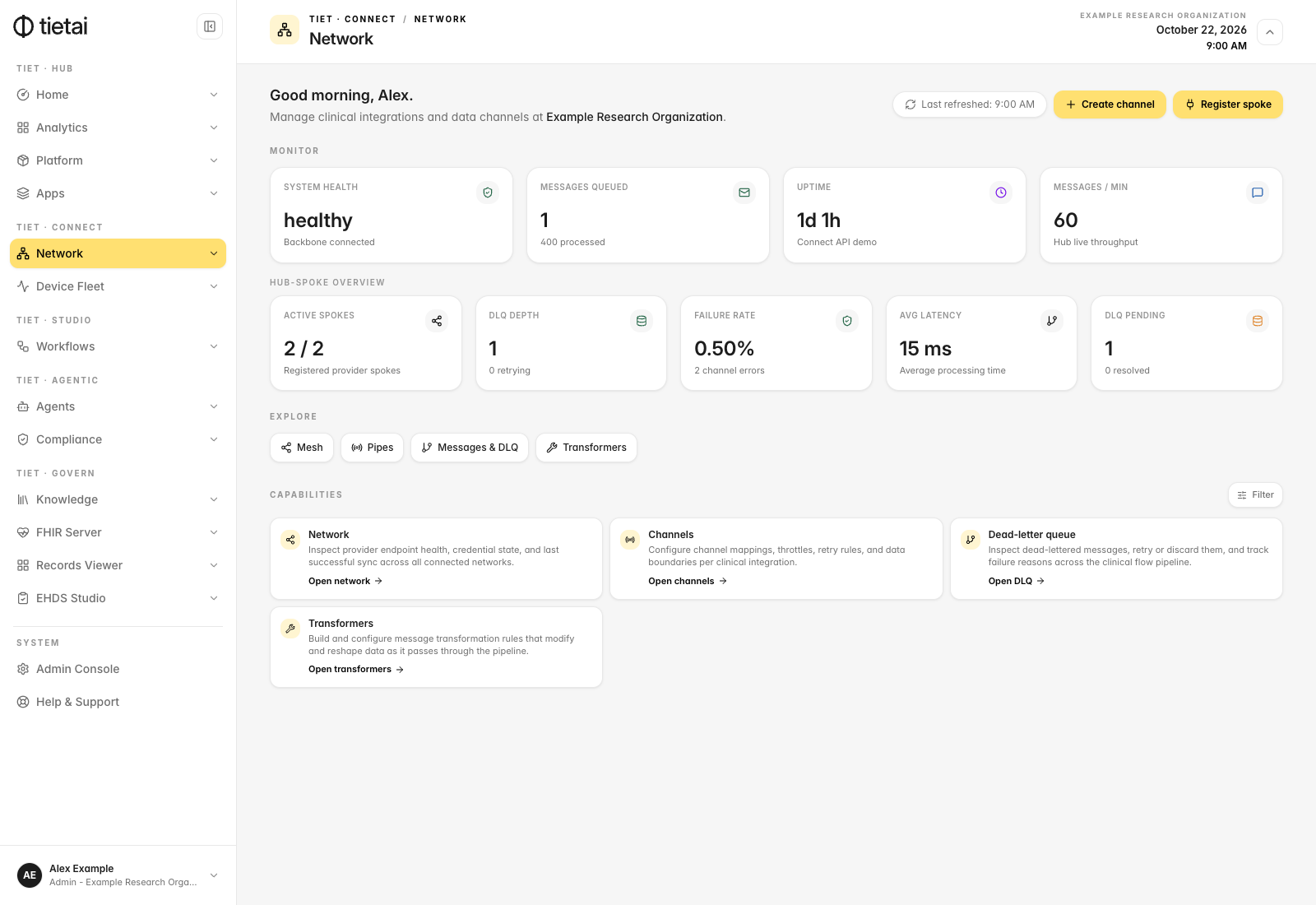
Separately, Device Fleet (Devices, Providers, Enrollment, Alerts, Automations, Settings) manages connected devices and wearables. See Wearables & Devices.
The Transformers entry is in the navigation, but no page is wired behind it in the frontend routes. A separate Transformations page exists and reads "Coming soon". You choose transformation steps inside a pipe, in the Processing step.
Before you create a pipe
You need permission to open Network, a reachable source and destination, and any credentials required by those systems. Confirm whether your Connect server runs in standalone or hub mode: retry and discard are available only in hub mode.
- Open Tiet · Connect → Network → Pipes and select New pipe.
- Follow Create a Connect pipe to configure the source, supported processing and destinations.
- After saving, select Resume to deploy the pipe. Creating it alone does not start its listeners.
- Send a synthetic test message. Open Messages → In channel, inspect its payload and status, and check that the destination received the expected data. A successful transport acknowledgement alone does not prove the mapping or destination write.
Operating modes

Connect runs in one of these modes, chosen with the SERVER_MODE environment variable of the Connect server:
| Mode | Maturity | What it is |
|---|---|---|
standalone (default) | GA | One Connect instance runs the channels, the connectors and the Network console. No hub backbone. |
hub | GA | A hub with a NATS backbone, a spoke registry, routing and a dead-letter queue (DLQ) you can retry and discard from. |
spoke | Beta in the retained matrix; current availability unverified | A spoke in a hub topology. |
Cross-spoke failover and a local queue on spokes (offline resilience) are Roadmap: do not rely on them.
When Connect runs in standalone mode, the Network console shows the notice "Standalone mode — no hub backbone." Spokes listed there are stored registrations, and their status is only as recent as their last heartbeat.
Mesh
Tiet · Connect → Network → Mesh shows the hub and the registered spokes with health badges: Connected, Degraded, Stale, Offline, Applying or Unknown. A spoke that reports healthy but has not sent a heartbeat for more than 5 minutes is shown as Stale.
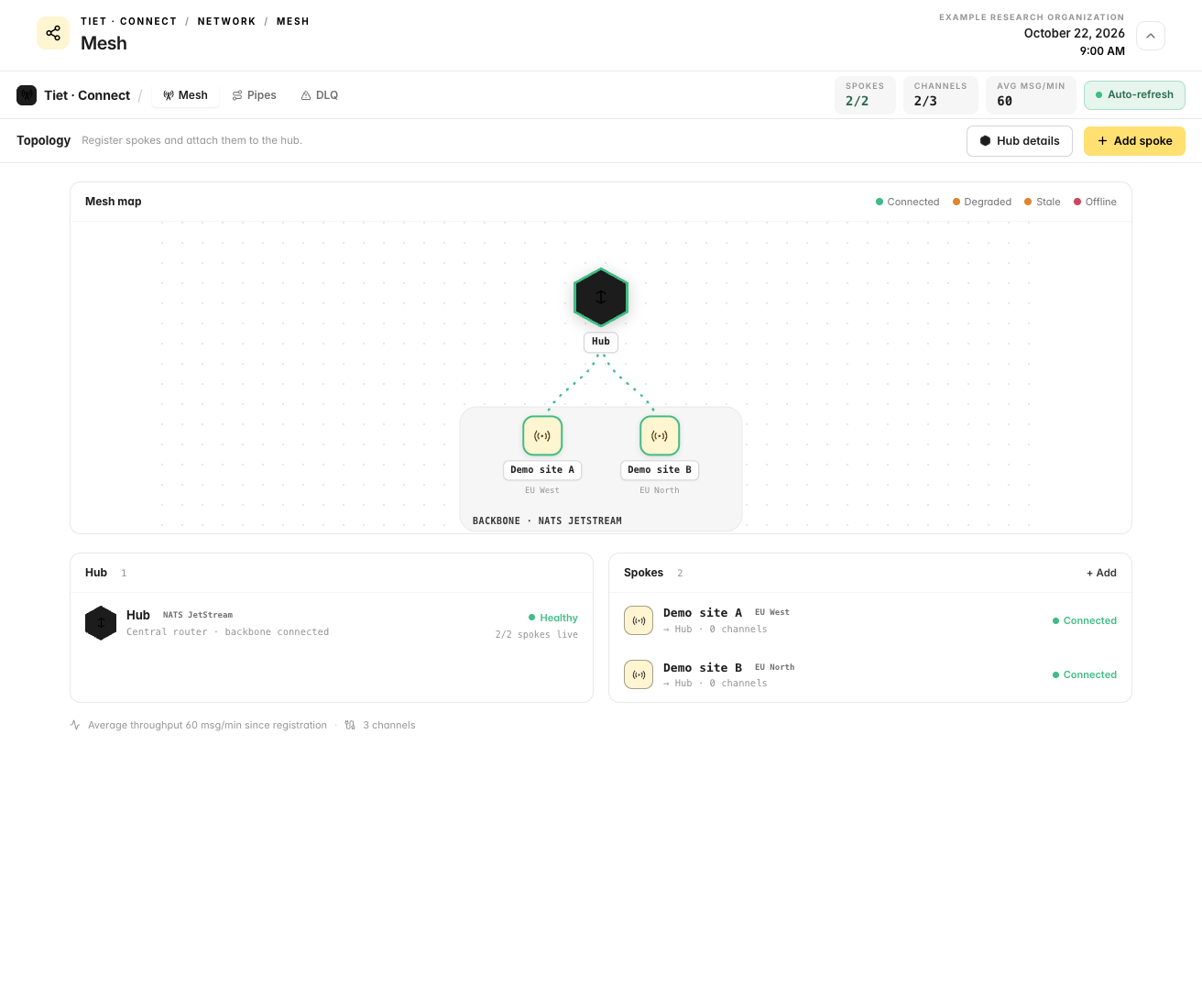
To add a spoke, use Add spoke in the Mesh view. Fields: Spoke ID (required, for example spoke-eu-west-1), a name, Region (for example eu-west-1 or on-prem), an endpoint and capabilities. Programmatically, POST /api/spokes/register needs the spoke service token (SPOKE_SERVICE_TOKEN), not a user token.
Pipes
Tiet · Connect → Network → Pipes lists every channel as a pipe card, grouped under On the mesh and Direct. The summary at the top shows Spokes live, Channels (deployed out of total), Hub, Avg msg/min (an average since each spoke registered, not a current rate) and Dead-letter. Filters: All, On mesh, Direct, Needs attention. New pipe starts the six-step builder.
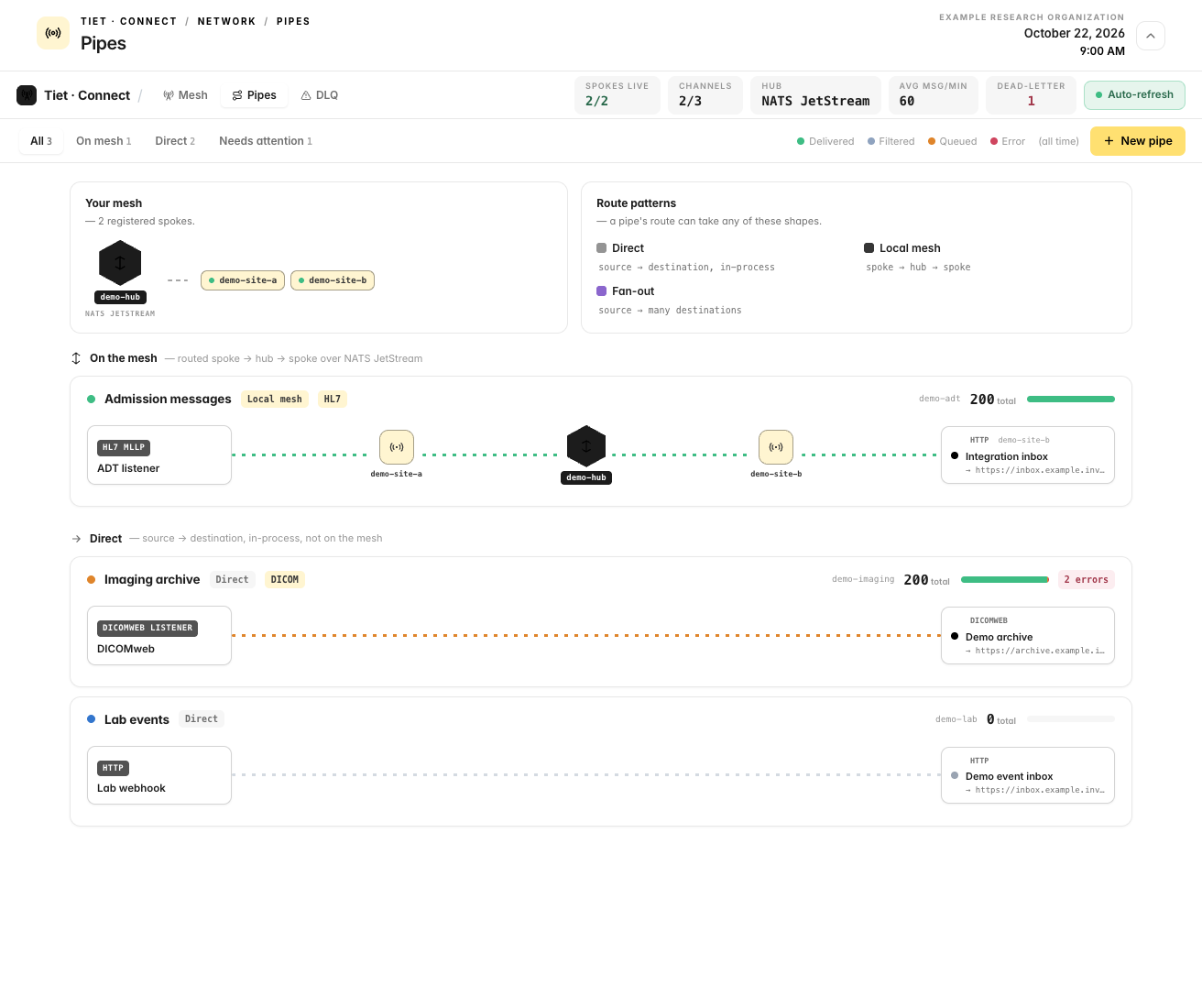

A pipe is a source connector, processors that run in the order listed, and one or more destinations. The route is Direct (source to destination in one process) or On mesh (source spoke, hub, destination spoke). The pipes console also names a route with several destinations "Fan-out".
The Connect API ignores spoke choices sent with a channel create or update: only the hub route endpoint (PUT /api/channels/:id/route, mesh token) may set source_spoke_id and destination_spoke_id. The builder's On mesh spoke selectors send them with the channel, so a pipe you create that way may still show as Direct. Check the route in the inspector after saving.
Pipe health
Click a pipe to open its inspector. The colour and label come from the channel flags and its counters:

| Label | Meaning |
|---|---|
| Stopped | The channel is disabled. |
| Ready | Enabled but not deployed, so nothing is listening. A pipe you just created is in this state. |
| Deployed | Deployed and no errors counted. |
| Errors recorded | Deployed, and at least one error has been counted since the channel was created. |
| High error share | Errors are more than 20% of delivered plus errored messages. |
The counters (Total received, Delivered, Filtered, Errors, Ever queued, Avg latency) are cumulative since the channel was created. A pipe with old errors keeps the "Errors recorded" label even if it is healthy now. "Ever queued" counts messages that entered the queue, not the current queue depth.
Pause and Resume
The inspector footer has Pause / Resume, Messages, Edit (side panel for name, route, destinations and transformations) and Full editor (the six-step builder).
- Pause undeploys the channel: the source connector and the destination connectors stop and the workers finish what is queued. A paused HL7 listener no longer accepts connections.
- Resume deploys it again.
Pause does not hold messages for later: while a pipe is paused, a sender gets a connection failure.
Messages and the dead-letter view
Messages opens a drawer with two tabs, In channel and Dead-letter. See Create a Connect pipe for how to use it.

Tiet · Connect → Network → DLQ (menu entry Messages & DLQ) lists failed messages for all channels, with a channel filter.
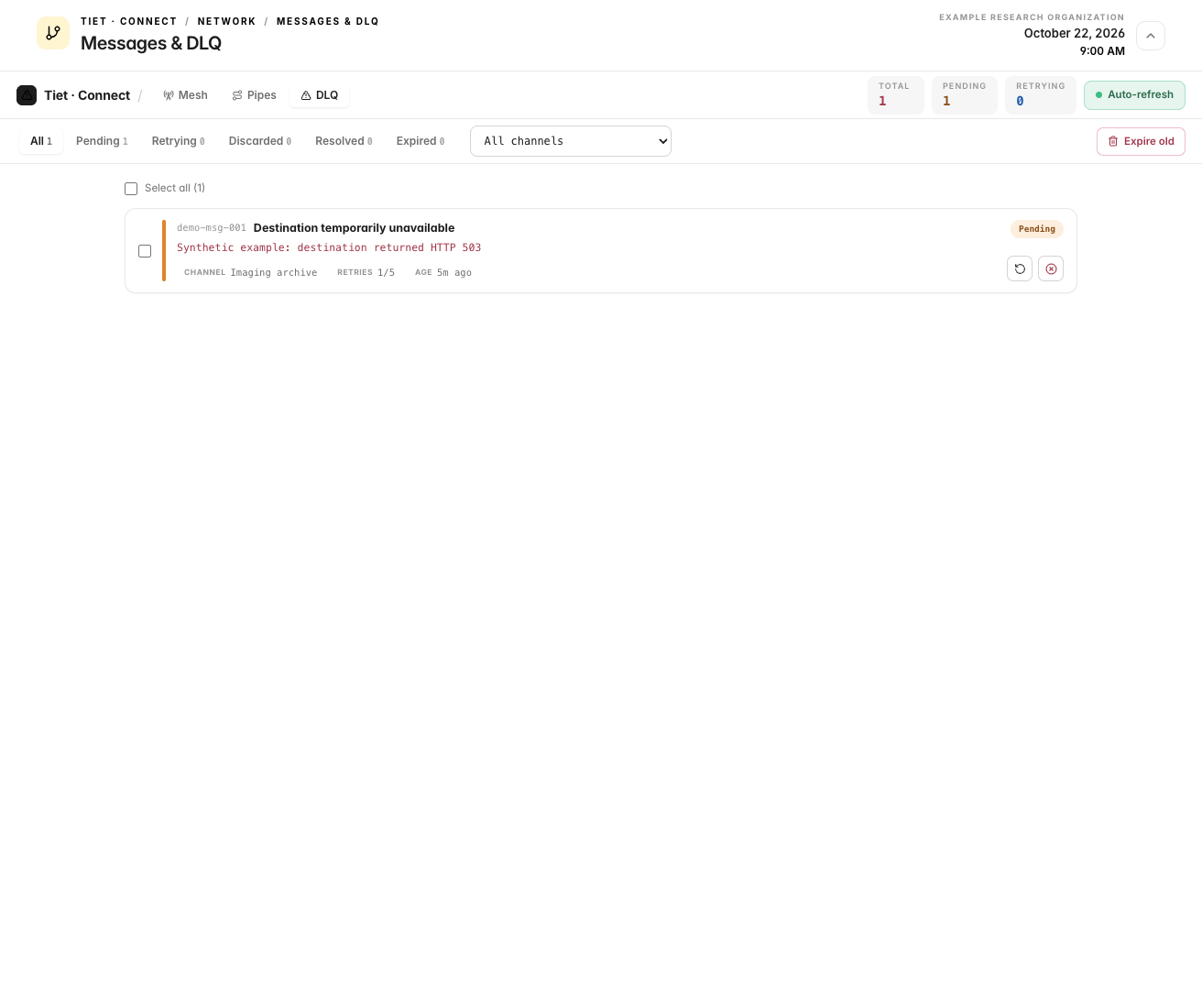
| Action | Standalone (GA) | Hub mode (GA) |
|---|---|---|
| What the DLQ lists | Messages whose status is Error | Dead-letter queue records with status Pending, Retrying, Discarded, Resolved or Expired |
| Retry / Replay | Not available | Available (single, selected, or "Replay page") |
| Discard | Not available for dead letters | Available; a reason is required and recorded |
| Expire old | Not available | "Expire old" ages out resolved and discarded records older than N days (default 7) |
| Retry counts and failure reasons | Not tracked | Shown |
In standalone mode the console says so: "The dead-letter queue is read-only here". To resend a failed message there, fix the cause and send the message again from the source.
Connectors (sources and destinations)
The connector list in the builder comes from the Connect connector catalog (internal/connectors/catalog.go), so it shows what the engine can run. Maturity is from the capability matrix.
| Connector (as labelled in the builder) | Source | Destination | Maturity |
|---|---|---|---|
| TCP (MLLP/HL7) | yes | yes | GA |
| HTTP / HTTPS | yes | yes | GA |
| WebSocket | yes | yes | GA server side, Beta client side |
| SMTP Email | no | yes | GA |
| FHIR REST | yes | yes | A destination that uses the HTTP connector. Bundle behaviour: see Create a Connect pipe. |
| DICOMweb, DICOMweb Listener | yes | DICOMweb only | GA |
| DICOM (DIMSE) | yes | yes | GA |
| DICOM Storage | no | yes | Not listed in the matrix |
| CDA / C-CDA | yes | yes | GA (parsing) |
| XDS.b (IHE) | no | yes | GA |
| File System | yes | yes | GA |
| Parquet Output | no | yes | GA |
| Dataspace Asset | no | yes | Pull endpoint GA |
| Database | yes | yes | PostgreSQL GA. MySQL and MongoDB are Roadmap even though the driver list shows them. |
| Apache Kafka | yes | yes | GA |
| CloudEvents HTTP | yes | no | Not listed in the matrix |
| IoT / MQTT | yes | yes | Beta. It connects to an MQTT broker you provide. Connect does not include a broker. |
| Hydra Pipeline | yes | no | Runs a deployed workflow on a schedule or once |
| Hydra Segment | no | yes | Not listed in the matrix |
| Cloudera Data Lake | yes | yes | Not listed in the matrix |
X12 EDI is handled by a parser in the Connect code base only. X12 parsing and workflow nodes are GA; this does not imply a dedicated transport connector. There is no X12 connector and no SAP IDoc connector.
HL7 message types: ADT^A01, A03, A08 and ORU^R01 are GA. ORM, SIU, VXU, BAR and pharmacy messages are also GA.
Processing in a pipe
The Processing step offers these entries (labels as shown): Pipeline, Anonymizer, Filter, Tag Transformer, AI Inference, JavaScript, HL7 to FHIR, FHIR to HL7, XPath, JSONPath, Regex. Each has an On error setting: Stop on error, Skip on error or Fallback on error.
Separately, the engine's transformer catalog lists these built-in transformers: HL7 v2.x to FHIR R4, IoT to HL7 (PCD DEC), Alert to HL7 (PCD ACM), CDA to FHIR R4, FHIR R4 to CDA, MHD to XDS.b, XDS.b to MHD, Debezium CDC to FHIR R4 and JavaScript. XSLT, JSONPath and Template are in the catalog marked planned, not yet implemented.
Some saved Processing options do not execute. An unsupported entry can also prevent the channel's DICOM processor chain from being built. Test the converted payload and destination write before relying on a pipe.
| Option | Current limitation | What to do |
|---|---|---|
| Pipeline | Runs a workflow inline; needs the server's workflow-engine connection and enabled agentic processing | Confirm HYDRA_API_URL and that CONNECT_AGENTIC_PROCESSORS_ENABLED is not false |
| Filter, Anonymizer | These processors act only on DICOM content in JSON form; other content passes through | Use DICOM test data and inspect the result |
| Tag Transformer, AI Inference | The builder saves identifiers that do not match the engine registry | Do not rely on these saved entries until the identifier mismatch is fixed and tested |
| HL7 to FHIR, FHIR to HL7, JavaScript, XPath, JSONPath, Regex | Saved Processing entries are not executed by the processor registry in the audited backend | Use a verified workflow, or the separately configured channel conversion described below |
| Channel HL7-to-FHIR conversion | Requires transform_to_fhir=true; the builder has no field for it | Configure through the channel API and verify Bundle type and destination handling |
| ORU lab-result conversion | Requires transformer_type=HL7_ORU_TO_FHIR and its options through the channel API | Test the resulting transaction Bundle; this mapping rejects a failed conversion |
For step-by-step conversion and batching details, see HL7 to FHIR: what you need to know. Engineering diagnostics, including the processor identifiers, remain in the page's evidence record.
When FHIR batching is on, a message shows Queued until the FHIR server answers, then Sent or Error. See Create a Connect pipe.
Processors that call a workflow run it inline. Setting CONNECT_AGENTIC_PROCESSORS_ENABLED=false on the Connect server turns that off.
Ordering
By default a channel dispatches messages unordered. With Max threads above 1, two messages about the same patient can be applied out of order, so a correction can be overwritten by the message it corrects. The ADT channel that Connect seeds uses 25 threads.
The option Preserve per-key order (ordering_enabled, Beta, off by default) keeps messages that share an ordering key in arrival order across threads. Different keys still run in parallel. The key is derived from the payload (HL7 PID-3, FHIR subject) unless you set Ordering key source (hl7.pid3, fhir.subject or none are the values the engine accepts). Ordering is verified at the dispatch level only, not end to end.
What is not available
- No TLS option on the MLLP listener in the connector catalog. Terminate TLS in front of Connect.
- Encryption at rest with per-organization keys and mTLS between hub and spoke are Roadmap.
- The drag-and-drop channel builder is Roadmap; the builder is a form stepper.
- Role enforcement for admin, operator and viewer is Roadmap.
- No per-minute or per-hour throughput charts in Pipes. The Monitor view is Beta.
Troubleshooting
| Symptom | Check |
|---|---|
| A new pipe shows Ready and nothing arrives | Create channel does not deploy. Open the pipe and click Resume. |
| Messages are rejected with a connection error | The pipe is Paused or Ready (not deployed), or the port is not reachable from the sender. |
| A message shows Error | Open Messages → In channel, select it, and read Errors. The text names the failing destination. |
Error says Queue full | The channel queue stayed full past the engine's queue-full timeout and the message was dropped. Raise Queue buffer size or Max threads. |
| The DLQ has no Retry button | The Connect server is in standalone mode. See the table above. |
| Spoke shows Stale | No heartbeat for more than 5 minutes. |
Something unclear? Send documentation feedback by email.