Using the Tietai Application
Interface reference: October 2026 light rebrand · Checked 23 October 2026.
This page explains the application shell: the sidebar, the organization selector, the account menu, Home and the Apps. Everything here is visible after you sign in.
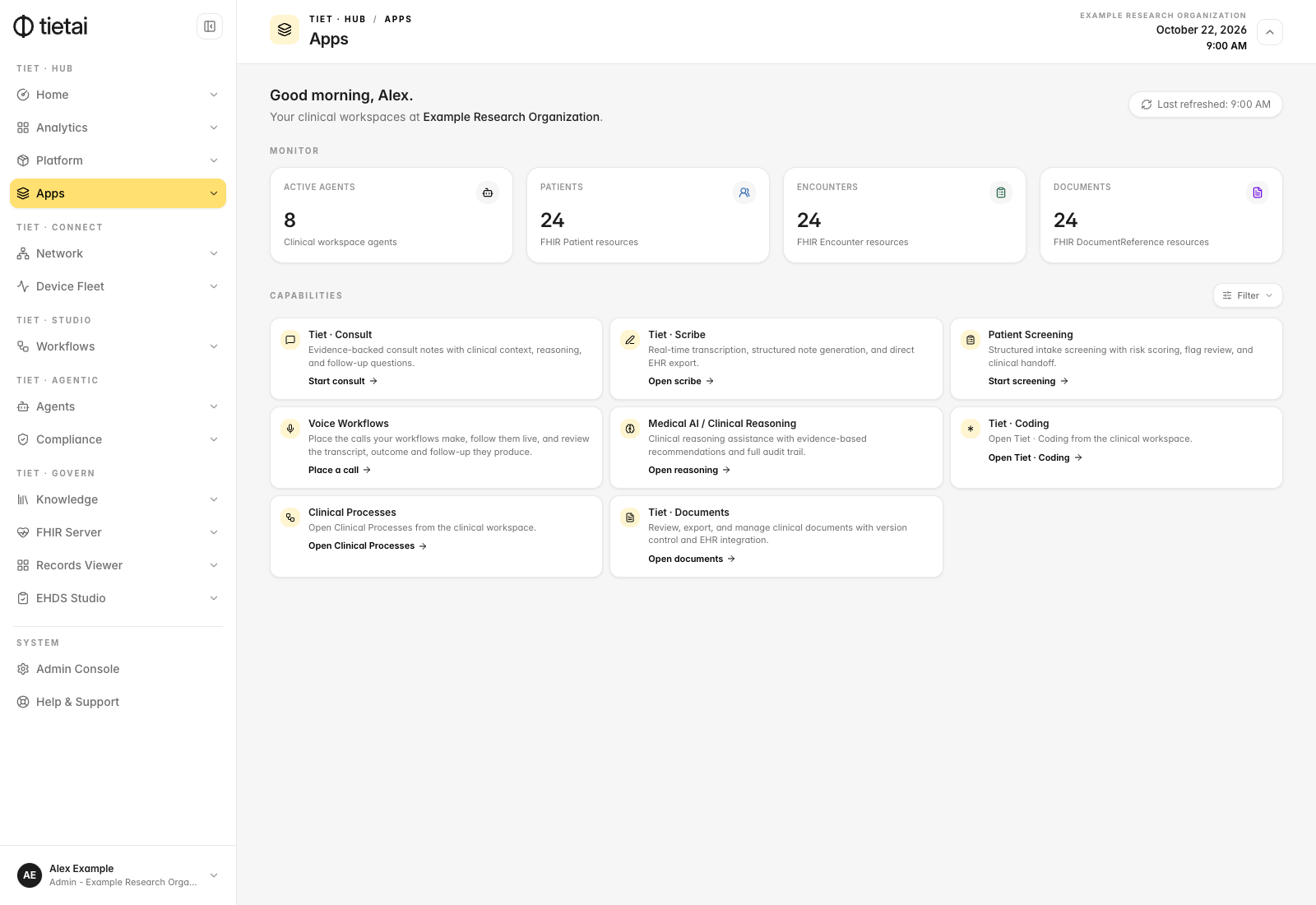
The sidebar
The top of the sidebar shows the Tietai logo. The active organization appears in the page header and beneath your name in the account area. The button next to it, Collapse navigation or Expand navigation, shrinks the sidebar to icons. In the collapsed state, hover an item to see its sub-items.
The items sit in six groups:
| Group | Items |
|---|---|
| Tiet · Hub | Home, Analytics, Platform, Apps |
| Tiet · Connect | Network, Device Fleet |
| Tiet · Studio | Workflows |
| Tiet · Agentic | Agents, Compliance |
| Tiet · Govern | Knowledge, FHIR Server, Records Viewer, EHDS Studio |
| System | Admin Console, Help & Support |
Click an item with sub-items to expand it. The full list of sub-items is in the Platform Overview.
You see an item only when your organization has the module and you hold a permission for it. If an item is missing, ask an organization administrator to check your roles, groups and direct grants in the Admin Console.
Choose the active organization
The active organization decides which data, modules and permissions apply to you. It is selected in the account menu:
- Click your name at the bottom-left of the sidebar. The account menu opens.
- Click the Company row. It shows the current organization name.
- Pick the organization from the list. With more than five organizations, a Search companies box appears. Your own organization carries a Home badge.
After you choose, the application loads that organization. If the switch fails you see Failed to switch company. Please try again.
The list contains only organizations you are allowed to access. If an organization is missing, an administrator must grant you access.
The account menu
The same menu, opened from your name at the bottom-left, contains:
- Company: the organization selector above.
- Management portal: shown only to Tietai staff who hold a management permission.
- Sign out.
To change your language, open System → Admin Console → Account → Profile, then Locale & Language. Theme and corner-radius settings are under Account → Appearance.
Home
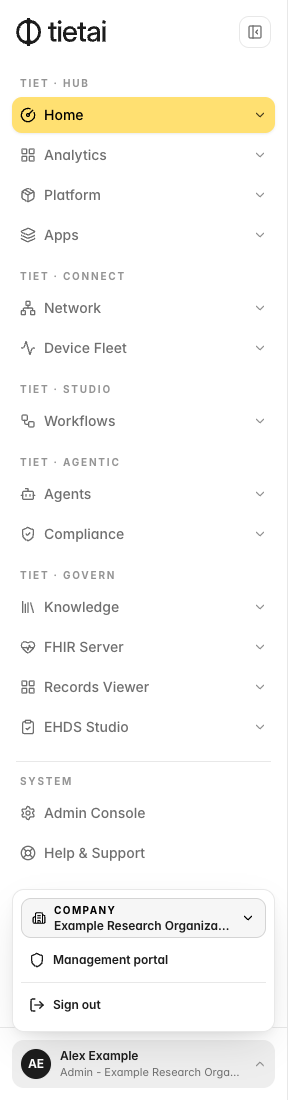
Tiet · Hub → Home is the landing page. It shows a greeting, the number of enabled modules, one shortcut card for each enabled module (labelled with its group), a Dashboards area with a Boards button and a Create dashboard field, Monitor tiles (Platform health, Agents online, Executions, Integrations), a Service Health list and a Recent work list with search and a View audit log link.
Apps
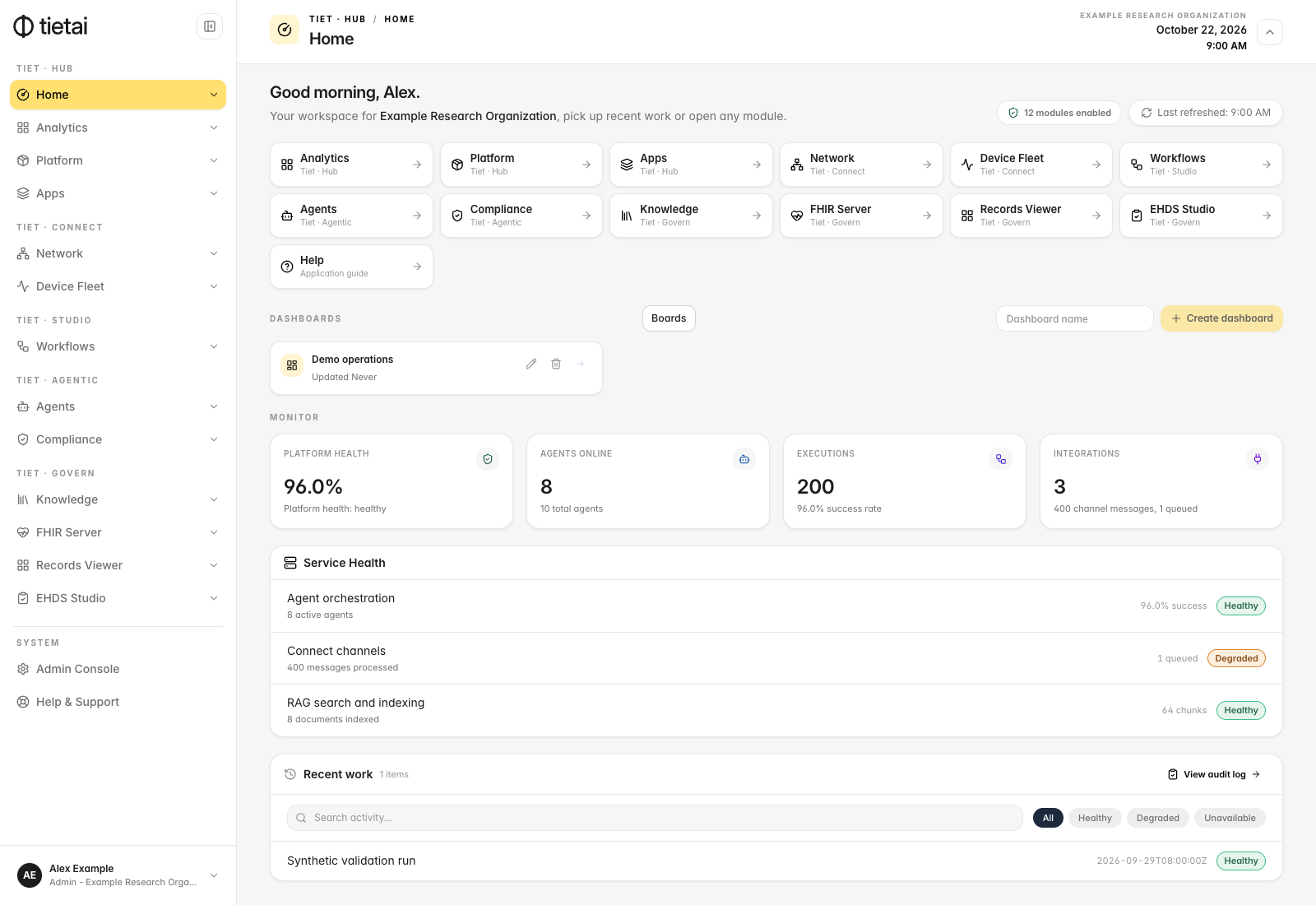
Tiet · Hub → Apps lists the clinical applications. Each one needs its own permission, so you may see only some of them. Above the app cards, a Monitor row shows Active agents, Patients, Encounters and Documents counts, and a Filter menu narrows the cards.
| App | What the Apps page says it does |
|---|---|
| Tiet · Consult | Evidence-backed consult notes with clinical context, reasoning and follow-up questions |
| Tiet · Scribe | Real-time transcription, structured note generation and direct EHR export |
| Patient Screening | Structured intake screening with risk scoring, flag review and clinical handoff |
| Voice Workflows | Place the calls your workflows make, follow them live and review the transcript, outcome and follow-up |
| Medical AI / Clinical Reasoning | Clinical reasoning assistance with evidence-based recommendations and a full audit trail |
| Tiet · Coding | Open Tiet · Coding from the clinical workspace. |
| Clinical Processes | Open Clinical Processes from the clinical workspace. |
| Tiet · Documents | Review, export and manage clinical documents with version control and EHR integration |
Admin Console
System → Admin Console opens a second menu next to the sidebar. Account (Profile, Appearance) is open to everyone. The other groups appear to organization administrators:
| Group | Items |
|---|---|
| Organization | General Settings, Consulta Agents, Plan & Billing, Users, Roles & Permissions, Notifications |
| Platform | API Usage, API Tokens, Secrets, Integrations, Storage, Environments |
| Security | Security, SSO / SAML, External Authentication, Audit Trail |
Click Admin Console again to leave it and return to Home.
Help & Support
System → Help & Support opens product documentation, workflow captures and support paths for the application areas available to you.
Something unclear? Send documentation feedback by email.